
Display Starting Prices by Bedroom Count Across Your Site
This feature allows you to display starting prices by bedroom count outside of the main Spaces page, ensuring consistent and accurate pricing labels across your website.
By pulling data directly from Spaces, it ensures that the starting price displayed is consistent across your site.
The example below shows how starting prices by bedroom count can appear when implemented outside of the main Spaces page.
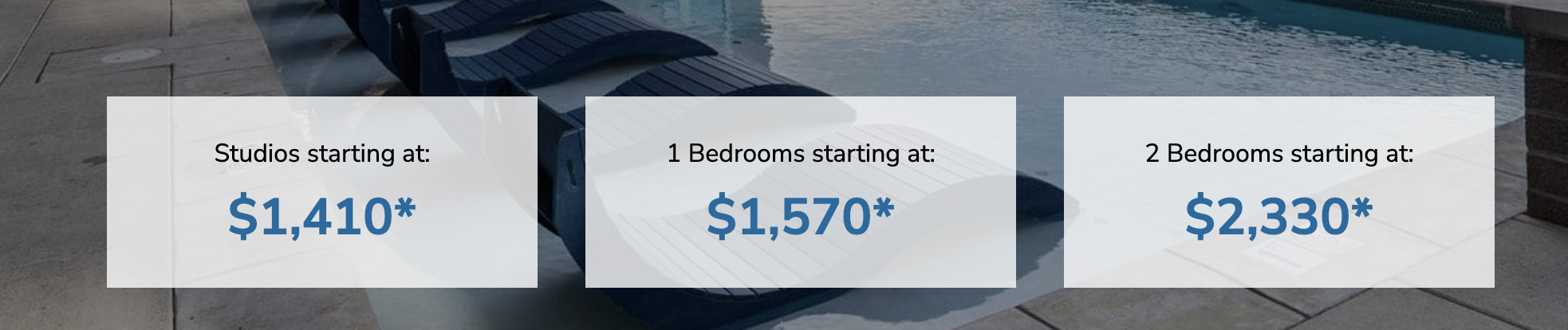
You also have the option to:
- Display Total Monthly Leasing Price (TMLP): This includes base rent plus required monthly expenses (e.g., parking, pet fees, amenity fees).
- Include Penthouse Units
Options for Displaying Starting Prices
You can display starting prices using either a shortcode (recommended for CMS users) or a utility method (recommended for developers who want full control).
Option 1: Shortcode Method (For CMS Users)
How to Enable Total Monthly Leasing Price (TMLP)
Use this method if you're working in a CMS environment and just need a simple HTML output that can be styled easily.
How to Enable Base Rent
[spaces_room_price asset_id=“[SPACES ASSET ID]”] <- BaseHow to Enable Total Monthly Leasing Price (TMLP)Use this method if you're working in a CMS environment (e.g., Billingsley sites) and just need a simple HTML output that can be styled easily.
To show TMLP in the room price shortcode, add the parameter:
include_required_monthly_fees="true"Example:
\[spaces_room_price asset_id=“[SPACES ASSET ID]” include_required_monthly_fees="true"]This will ensure the pricing reflects the full monthly cost a renter can expect.
Option 2: Utility Method (For Developers)
Use this method if you’re a developer and want granular control over how pricing data is rendered inside your own theme or component system.
This approach returns structured data (an array), which you can then render in any format you choose.
Usage Examples:
Minimum base rent prices for all room counts:
\SPACES\Utility::spaces_get_min_price_for_room_count_by_asset(
    spaces_asset_id: 9475,
    room_count: null,
    include_required_monthly_fees: false
);
Minimum rents including required monthly fees for all room counts:
\SPACES\Utility::spaces_get_min_price_for_room_count_by_asset(
    spaces_asset_id: 9475,
    room_count: null,
    include_required_monthly_fees: true
);
Minimum base rent prices for studios only (roomcount = 0):
\SPACES\Utility::spaces_get_min_price_for_room_count_by_asset(
    spaces_asset_id: 9475,
    room_count: 0,
    include_required_monthly_fees: false
);
⚠️ Note: Passing a room count with no availability will return false.
Displaying Minimum Price by Custom Filter Value (e.g., Penthouse)
In the CMS, mark floor plans that are penthouse and rebuild the Spaces data cache.
Use either the shortcode or utility method to return the lowest price for any floor plans that have been marked with the custom filter class of penthouse.
Shortcode:
[spaces_custom_filtered_plan_price asset_id="SPACES ASSET ID FROM CMS" custom_filter_value="penthouse"]Optionally add the include_required_monthly_fees="true" parameter to display the Total Monthly Leasing Price (TMLP) if available for the asset.
Utility Method:
$price = \\SPACES\\Utility::get_minimum_price_for_floor_plan_by_custom_filter_value(
  spaces_asset_id: $spaces_asset_id,
  custom_filter_value: 'penthouse',
  include_required_monthly_fees: (bool) true|false
);
This method returns the price as a formatted string without any surrounding HTML.
Updated 11 months ago